
5 Things You Didn't Know Your Apple Watch Could Do
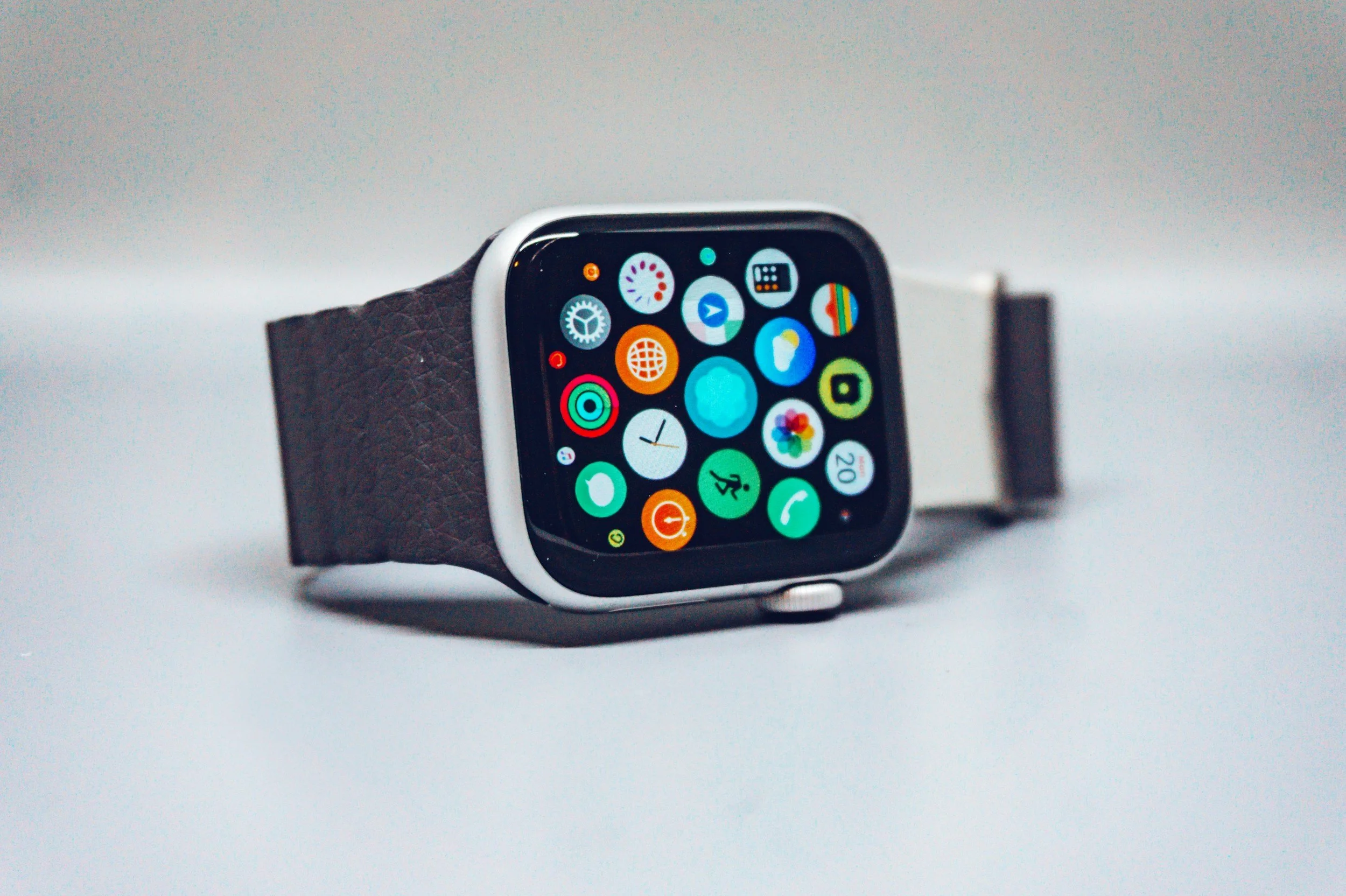
Your Apple Watch can do a lot more than show notifications and count steps.
Here are 5 genuinely useful features you might not know about.
1. Find your iPhone
Lost your phone somewhere in the house? Your watch can find it.
Press the side button on your watch — that's the long rectangular button, not the round crown. This opens Control Centre, which is a row of icons. Look for the icon that looks like a phone with sound waves coming out of it and tap it.
Press the side button → find the phone with sound waves icon → tap it
Your iPhone makes a loud ping — even if it's on silent.
Tip: Press and hold that icon to make your iPhone flash as well. Useful in the dark.
2. Use it as a camera remote
Want to take a group photo without running back to beat the timer? Prop your iPhone up and control the camera from your wrist.
Press the round Digital Crown on the side of your watch to go to your apps. Scroll around until you see the Camera Remote app — it looks like a camera. Can't find it? Press the Digital Crown and say "Hey Siri, open Camera Remote" and it'll open straight away.
Press Digital Crown → find and open Camera Remote → prop your iPhone up → tap the white shutter button on your watch to take the photo
Your watch shows a live preview of exactly what your iPhone camera can see. When you're happy with it, tap the white button to take the shot.
Tip: Tap the timer icon on your watch screen to add a 3-second delay — gives you time to put your arm down naturally before it takes the photo.
3. Silence a call instantly
Phone ringing at a bad moment? Just cover your watch face with your palm for 3 seconds. The call silences immediately — no need to scramble for your phone.
To turn this on, open the Watch app on your iPhone, tap Sounds & Haptics, then switch on Cover to Mute.
Watch app on iPhone → Sounds & Haptics → turn on Cover to Mute
Tip: This silences the ring but doesn't decline the call — it just stops the noise while it keeps ringing quietly.
4. Get directions without looking at your phone
Start a walking route in Maps on your iPhone as normal. Once it's going, your watch will tap your wrist to tell you when and where to turn — no need to keep looking at your phone.
- Steady taps = turn right
- Two taps, pause, two taps = turn left
- Long vibration = you've arrived
Tip: Nothing to set up — just start Maps on your iPhone and your watch does the rest automatically.
5. Unlock your Mac automatically
If you have a Mac, your watch can unlock it the moment you sit down. No password needed — just walk up wearing your watch and it opens by itself.
To set it up, go to your Mac, click the Apple logo in the top left, then System Settings, then Touch ID & Password. You'll see an option that says Use Apple Watch to unlock — switch it on.
Apple logo → System Settings → Touch ID & Password → turn on Use Apple Watch to unlock
Tip: Your watch and Mac need to be signed into the same Apple ID for this to work.
Bonus: Double Tap
Tap your thumb and index finger together twice to answer a call, pause music, or snooze an alarm — without touching the screen at all. Works on Apple Watch Series 9 and Ultra 2 or newer.
Want help setting up your Apple Watch?
Get in touch